
Center for Teaching and Learning
Faculty Class Collaborate

Class Collaborate web conferencing software offers a versatile platform that caters to a wide spectrum of educational needs. Its adaptability allows instructors to deliver content in multiple formats, whether through prerecorded lectures that students can access at their own pace and revisit as needed, providing a foundational understanding of complex topics. For those who thrive on real-time interaction and immediate feedback, live lectures powered by Class Collaborate foster a dynamic classroom environment. This format enables spontaneous Q&A sessions, participatory activities, and a sense of community that mirrors traditional in-person learning. Furthermore, the software extends its utility to facilitating virtual office hours, breaking down geographical barriers and making instructors more accessible for individual student support, clarification, and personalized guidance. Collectively, these features empower students with flexible and engaging learning opportunities, allowing them to tailor their educational journey to their individual schedules, learning styles, and support requirements.
This is an overview of the system requirements and browser support essential for the optimal use of the platform. By adhering to these guidelines, you will be better equipped to utilize Class Collaborate effectively in your courses.
Open the Browser Support web tutorial to learn more.
This tutorial will provide effective strategies and techniques that will help you maximize engagement and interaction with your students. The goal is to ensure that you and your students have the best possible experience while utilizing this important tool for collaboration.
Open the Session Best Practices web tutorial to learn more.
Class Collaborate offers robust collaboration and conferencing tools that ensure everyone feels connected and engaged, regardless of their location or the device they are using. With its user‑friendly interface, you can easily facilitate discussions, share resources, and create an interactive learning environment that mirrors the experience of being in the same room.
Open the Get Started web tutorial to learn more.
This tutorial focuses on the process of creating new Class Collaborate sessions and will provide you with the necessary guidance and best practices to effectively set up and manage your online classes, ensuring a seamless experience for both you and your students.
Open the Create Sessions web tutorial to learn more.
This tutorial focuses on the various settings available for each Class Collaborate session and provides valuable insights into how to effectively configure your settings to enhance the learning experience for your students.
Open the Session Settings web tutorial to learn more.
This tutorial will cover the various methods and tools available within Class Collaborate that can help you effectively monitor and record student attendance. It will also provide you with practical insights and tips to streamline your attendance tracking process.
Open the Attendance Reporting web tutorial to learn more.
This tutorial will explore the various options available for modifying your existing sessions to better meet the needs of your students. Whether you need to adjust the timing, content, or format, this tutorial will provide you with the necessary tools and insights to make those changes effectively.
Open the Edit Sessions text tutorial to learn more.
This tutorial will explore the steps required to enable your audio and video settings, ensuring a more engaging and interactive experience for both you and your students. Mastering these tools can significantly improve communication and collaboration during online classes.
Open the Use Audio and Video in Session web tutorial to learn more.
This tutorial will provide guidance on how to effectively use your phone for audio during our Class Collaborate sessions. It will also cover the necessary steps to call the number provided and ensure a seamless experience while engaging with our students.
Open the Call Into Session web tutorial to learn more.
This tutorial will explore the specific responsibilities associated with each role, including the Moderator and Participant, and how these can be leveraged to improve student interaction and learning outcomes.
Open the Session Roles web tutorial to learn more.
This tutorial will delve into the distinct functionalities of Speaker View, Tiled View, and Gallery View, explaining how each contributes to a unique visual experience within Class Collaborate and providing guidance on when and why to employ them for optimal communication and interaction.
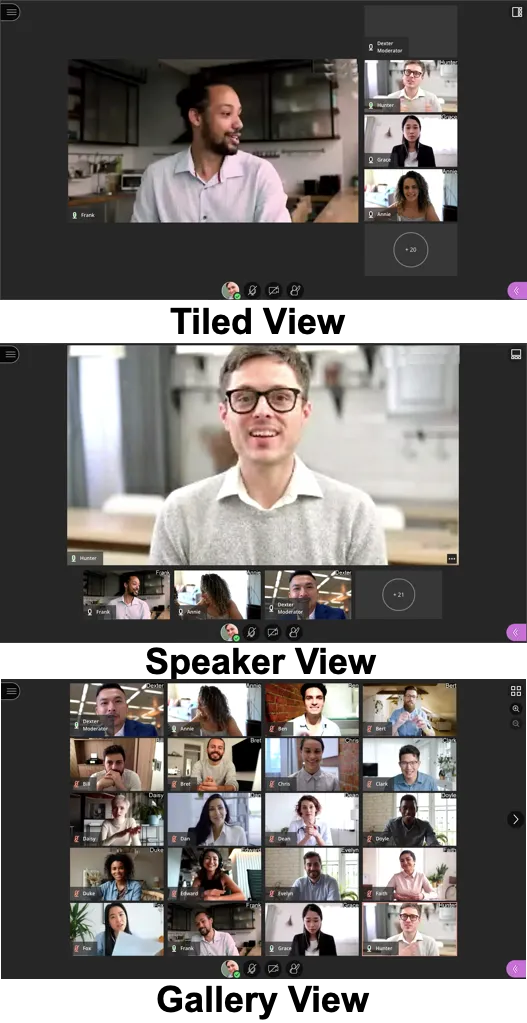
Open the Video Views web tutorial to learn more.
This tutorial will explore various techniques and best practices that can empower students to express their thoughts and ideas through text-based communication.
Open the Use Chat web tutorial to learn more.
This tutorial will discuss how to effectively use the Share Application, Share Files, and Share Whiteboard tools to enhance interactive sessions and improve the overall learning experience for students.
Open the Share Content web tutorial to learn more.
In a Class Collaborate session, effectively managing attendees is crucial for a productive and engaging learning environment. This tutorial will guide you through these key functionalities, empowering you to control the flow of your Collaborate session and foster a positive learning experience for everyone involved.
Open the Manage Attendees web tutorial to learn more.
Class Collaborate offers a convenient recording feature, allowing instructors and participants to capture live sessions for later review. This tutorial will guide you through the process of recording a session, from initiating the recording to managing and accessing the final product.
Open the Record Sessions web tutorial to learn more.
Though users may stream the recorded video using Class Collaborate, you may also download the video to a device. This allows users to edit the video (using a video editing software, such as Camtasia) and/or upload to another media streaming server, such as YouTube or Panopto.
Open the Download Recordings text tutorial to learn more.
View data, such as the total count of hands raised during the session, the proportion of attendees who raised their hands during the session, the total count of chat messages sent during the session, and the proportion of attendees who sent chat messages during the session.
Open the Session Engagement Insights web tutorial to learn more.
Since Class Collaborate is hosted within a web browser, we recommend using Mozilla Firefox or Google Chrome for optimal use. If you experience technical issues, you may try using the troubleshooting techniques provided below.
- Close out any other applications or browser windows, especially any that may use your camera or microphone.
- Use the Google Chrome or Firefox browser. If you are already using one, try switching to the other.
- Check that your browser is fully up-to-date and supported (https://www.class.com/support/collaborate/participant/get-started/browser-support/).
- Make sure your browser allows third-party cookies – Google Chrome | Firefox
- Check your Audio and Video Setup to make sure your microphone is set up properly.
- Check the browser’s microphone and webcam settings to make sure the correct input is selected and that Class Collaborate has not been blocked.
- Clear your browser’s cache - Google Chrome | Firefox
- When in doubt, try restarting your computer.
- Disable ad blockers and extensions, then refresh your Class Collaborate session. If necessary try Chrome in an Incognito window or Firefox in a Private window.
- Home networking troubleshooting tips - https://support.class.com/s/article/Collaborate-home-networking-troubleshooting-tips
Class is fully committed to ensuring that all products and services we deliver are both usable and accessible to all users, regardless of age, ability, or situation. In keeping with our strong tradition of leadership around accessibility, our products are designed and developed in accordance with the internationally recognized Web Content Accessibility Guidelines (WCAG) 2.1 Level AA, as well as the Section 508 standards in the United States. A third party conducts regular audits of our software to ensure quality expectations are met and maintained. Class for Web VPAT 2.4-2021 PDF
Contact Us
- Center for Teaching and Learning
- Governors State University - C Building
- 708-534-4115
- blackboard@govst.edu