
Center for Teaching and Learning
Student Getting Started Ultra

The Blackboard Learn Ultra Getting Started page is designed to equip you with the essential knowledge and skills needed to confidently navigate your online learning environment. Blackboard Learn Ultra serves as the digital classroom for your courses, providing access to syllabi, assignments, grades, discussion forums, and a wealth of resources. Think of it as your virtual campus, accessible anytime, anywhere. We will guide you through the fundamental features, from logging in and understanding your course homepage to submitting assignments and interacting with your instructors and peers. By the end of this orientation, you will be well prepared to make the most of your Blackboard experience and fully engage in your academic journey.
To ensure a smooth and successful start with Blackboard Learn Ultra, students are encouraged to utilize the Students: Getting Started in Blackboard Learn Ultra flyer. This flyer contains all the essential content you need to familiarize yourself with the platform.
Online Learning Tools
Before viewing other tutorials, please make sure you understand the basics of Blackboard. These basics include logging into GovState’s Blackboard, accessing the Global Navigation menu, and entering and navigating a course. Please use the Blackboard Student Orientation course (located in your Course List in Blackboard) as an additional assistance tool.
This is a non-credit course that is specifically used as a guide for software instruction. However, please note that some instructors may request the Blackboard Student Orientation completion certificate for credit or extra credit.
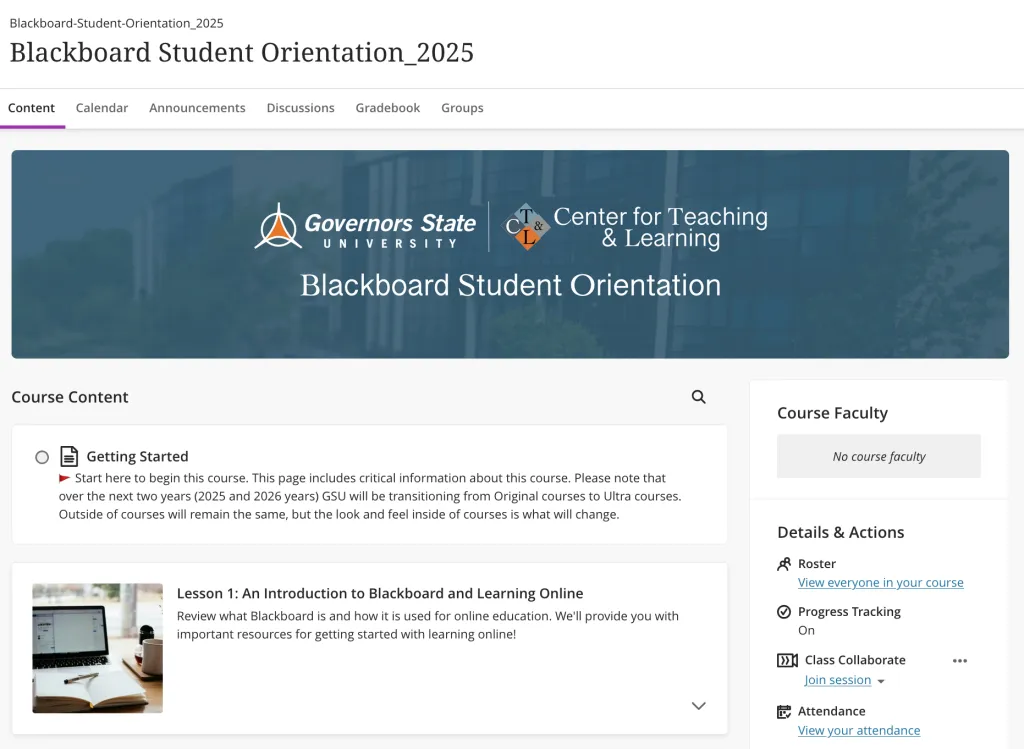
You should be able to use all of the main features in Blackboard, but certain features may require you to enable a plug-in or update the plug-in version.
Open the Technology Requirements page to make sure your device is Blackboard-ready.
To succeed online, stay current, plan for the unexpected, and fit coursework into your schedule.
Open the Ways to Succeed online webpage to learn more.
If you forgot your password, you may reset it using the Password Reset Tool.
Username and password issues, including those for Blackboard, are handled by the ITS Helpdesk. They can be reached at 708.534.4357 or by email at help@govst.edu.
Log in to the Web Version of Blackboard and Navigate
These tutorials will discuss multiple ways to log in and log out of Blackboard NewLearn.
Open the Blackboard Login tutorial and Blackboard Logout tutorial to learn more.
Starting the moment you log in to Blackboard Learn, you will have consistent access to Base Navigation’s list of features. The list peeks out from behind the other layers you have open, so you can always access it from wherever you are—even if you are in a course.
Open the Navigate Blackboard Outside of Courses tutorial to learn more.
Your profile images will appear in discussions, journals, and group activities. Instructor profile images will appear in the notification modules. If you do not upload an image file, a generic silhouette is used.
Open the Upload Profile Image tutorial to learn more.
Your profile includes your full name, pronunciation, and email address. All of these options are editable if any of this information changes.
Open the Change Account Information tutorial to learn more.
This tutorial will discuss how to enter and navigate a course. If you are working from a device with a smaller screen width, you may encounter the mobile responsive design theme.
Open the Enter and Navigate Courses tutorial to learn more.
The discussion board tool is used for sharing thoughts and ideas with other individuals in your course. This tool can be accessed through the Discussion Board link in the left navigation menu or within the Course Content menu, which may contain learning modules, folders, or lesson plans.
Open the Discussion Board tutorial to learn more.
Assignments can be accessed through the Assignments link in the left navigation menu or within the Course Content menu, which may contain learning modules, folders, or lesson plans.
Open the Assignments tutorial to learn more.
Quizzes, exams, or tests can be accessed through the Quizzes and Exams link in the left navigation menu or within the Course Content menu, which may contain learning modules, folders, or lesson plans.
Open the Tests tutorial to learn more.
Blackboard Class Collaborate is GovState’s web conferencing software. Use Class Collaborate to watch prerecorded lectures from your instructor, access live lectures to interact with other members of the course, attend virtual office hours, or communicate with other members of the course.
Open the Class Collaborate tutorial to learn more.
Log in to the Blackboard Mobile App and Navigate
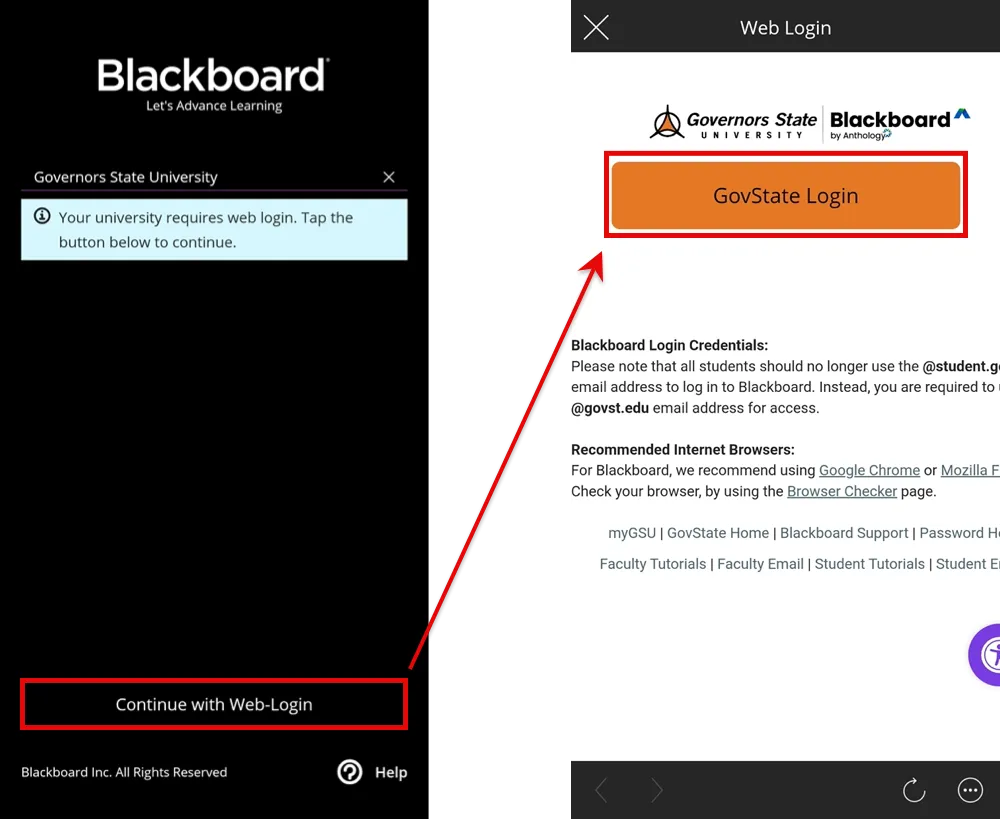
To log in to the mobile app, please search for and select “Governors State University.” Log in using the same GovState credentials you use for the web version of GovState Blackboard Learn, the myGSU portal, and GovState email.
The discussion board tool is used for sharing thoughts and ideas with other individuals in your course. This tool can be accessed through the Discussion Board link in the left navigation menu or within the Course Content menu, which may contain learning modules, folders, or lesson plans.
Open the Discussions tutorial to learn more.
Assignments can be accessed through the Assignments section or within the Course Content menu, which may contain learning modules, folders, or lesson plans.
Open the Assignments tutorial to learn more.
Quizzes, exams, or tests can be accessed through the Quizzes and Exams section or within the Course Content section, which may contain learning modules, folders, or lesson plans.
Please note that, depending on the type of test, you may be prompted to access the web version of Blackboard Learn.
Open the Tests tutorial to learn more.
Blackboard Class Collaborate is GovState’s web conferencing software. Use Class Collaborate to watch prerecorded lectures from your instructor, access live lectures to interact with other members of the course, attend virtual office hours, or communicate with other members of the course.
Please note that if you are promoted to the Presenter or Moderator role, Class Collaborate on a mobile device does not support application sharing.
Open the Class Collaborate tutorial to learn more.
Additional Resources
This tutorial will discuss where to download Microsoft Office 365 and how to access support.
GovState does manage Microsoft Office 365. For more information, please contact the ITS Helpdesk at 708.534.4357 or email help@govst.edu
Using your smartphone as a wireless access point will allow other devices to connect to the internet.
Open the Mobile Hotspot for Android tutorial or Mobile Hotspot for iPhone tutorial to learn more.
For more information regarding mobile hotspots, please contact the ITS Helpdesk at 708.534.4357 or email help@govst.edu
Contact Us
- Center for Teaching and Learning
- Governors State University - C Building
- 708-534-4115
- blackboard@govst.edu